




When the local network cannot access the platform, enable 1.1.1.1 and then try logging in again.
ATAS3 / FAQ
Start with the question that matches your screen, then open the illustrated guide for the complete sequence.
ATAS3 tutorial help
Start with a quick answer, then open the matching illustrated tutorial for the complete step-by-step flow.
8 guides
Verification, access recovery, credentials and linked bank accounts.
Follow this illustrated guide to complete Account Authentication securely. Review every image in sequence before confirming any account or payment changes.
Open the tutorial and follow every image in sequence. If your screen looks different, stop before confirming and contact Customer Services.
View illustrated guideFollow this illustrated guide to complete Recover Forgotten UID securely. Review every image in sequence before confirming any account or payment changes.
Open the tutorial and follow every image in sequence. If your screen looks different, stop before confirming and contact Customer Services.
View illustrated guideFollow this illustrated guide to complete Reset Forgotten Password securely. Review every image in sequence before confirming any account or payment changes.
Open the tutorial and follow every image in sequence. If your screen looks different, stop before confirming and contact Customer Services.
View illustrated guideFollow this illustrated guide to complete Reset Payment PIN securely. Review every image in sequence before confirming any account or payment changes.
Open the tutorial and follow every image in sequence. If your screen looks different, stop before confirming and contact Customer Services.
View illustrated guideFollow this illustrated guide to complete Change UID Email securely. Review every image in sequence before confirming any account or payment changes.
Open the tutorial and follow every image in sequence. If your screen looks different, stop before confirming and contact Customer Services.
View illustrated guideFollow this illustrated guide to complete Change UID Phone Number securely. Review every image in sequence before confirming any account or payment changes.
Open the tutorial and follow every image in sequence. If your screen looks different, stop before confirming and contact Customer Services.
View illustrated guideFollow this illustrated guide to complete Add Bank Account securely. Review every image in sequence before confirming any account or payment changes.
Open the tutorial and follow every image in sequence. If your screen looks different, stop before confirming and contact Customer Services.
View illustrated guideFollow this illustrated guide to complete Delete Bank Account securely. Review every image in sequence before confirming any account or payment changes.
Open the tutorial and follow every image in sequence. If your screen looks different, stop before confirming and contact Customer Services.
View illustrated guide8 guides
Top ups, withdrawals, transfers and account records.
Follow this illustrated guide to complete Account Top Up securely. Review every image in sequence before confirming any account or payment changes.
Open the tutorial and follow every image in sequence. If your screen looks different, stop before confirming and contact Customer Services.
View illustrated guideFollow this illustrated guide to complete EZPay Top Up securely. Review every image in sequence before confirming any account or payment changes.
Open the tutorial and follow every image in sequence. If your screen looks different, stop before confirming and contact Customer Services.
View illustrated guideFollow this illustrated guide to complete S99 Top Up securely. Review every image in sequence before confirming any account or payment changes.
Open the tutorial and follow every image in sequence. If your screen looks different, stop before confirming and contact Customer Services.
View illustrated guideFollow this illustrated guide to complete Withdrawal Guide securely. Review every image in sequence before confirming any account or payment changes.
Open the tutorial and follow every image in sequence. If your screen looks different, stop before confirming and contact Customer Services.
View illustrated guideFollow this illustrated guide to complete Friend Transfer securely. Review every image in sequence before confirming any account or payment changes.
Open the tutorial and follow every image in sequence. If your screen looks different, stop before confirming and contact Customer Services.
View illustrated guideFollow this illustrated guide to complete Scan to Transfer securely. Review every image in sequence before confirming any account or payment changes.
Open the tutorial and follow every image in sequence. If your screen looks different, stop before confirming and contact Customer Services.
View illustrated guideFollow this illustrated guide to complete View Transaction Record securely. Review every image in sequence before confirming any account or payment changes.
Open the tutorial and follow every image in sequence. If your screen looks different, stop before confirming and contact Customer Services.
View illustrated guideFollow this illustrated guide to complete View Game Record securely. Review every image in sequence before confirming any account or payment changes.
Open the tutorial and follow every image in sequence. If your screen looks different, stop before confirming and contact Customer Services.
View illustrated guide5 guides
Wallet currencies, exchange settings and USDT transactions.
Follow this illustrated guide to complete Add Currency securely. Review every image in sequence before confirming any account or payment changes.
Open the tutorial and follow every image in sequence. If your screen looks different, stop before confirming and contact Customer Services.
View illustrated guideFollow this illustrated guide to complete Exchange Currency securely. Review every image in sequence before confirming any account or payment changes.
Open the tutorial and follow every image in sequence. If your screen looks different, stop before confirming and contact Customer Services.
View illustrated guideFollow this illustrated guide to complete Adjust Primary & Billing Currency securely. Review every image in sequence before confirming any account or payment changes.
Open the tutorial and follow every image in sequence. If your screen looks different, stop before confirming and contact Customer Services.
View illustrated guideFollow this illustrated guide to complete USDT Top Up securely. Review every image in sequence before confirming any account or payment changes.
Open the tutorial and follow every image in sequence. If your screen looks different, stop before confirming and contact Customer Services.
View illustrated guideFollow this illustrated guide to complete USDT Withdrawal securely. Review every image in sequence before confirming any account or payment changes.
Open the tutorial and follow every image in sequence. If your screen looks different, stop before confirming and contact Customer Services.
View illustrated guideGood to know
Practical help for withdrawals, bank accounts, web access, game downloads and connection issues.
Need more help? →Here are two ways to resolve this issue:
Clear your browser cache. If you are using the app, uninstall it, download it again and retry adding the account.
Log in through the web link, add your bank account again and then submit the withdrawal request.
Delete the bank account that cannot be selected, then add it again:
Go to Me → Bank Account Number.
Select Delete.
Select Add bank account.
Enter the complete account information and select Next.
After Success is displayed, submit the withdrawal request again.
Transactions may fail temporarily because of network or banking-system issues. After submitting the order, please wait patiently. The order should be completed within 30 minutes.
Go to the Bank Account page, delete the current bank account and add it again. Then submit the withdrawal order one more time.
Clear your phone’s browser cache or try logging in with another browser. If the web version is still inaccessible, contact customer service for assistance.
Follow the illustrated steps below: install and connect the 1.1.1.1 WARP app, return to 918KISS, select Download and choose the correct version for your device.
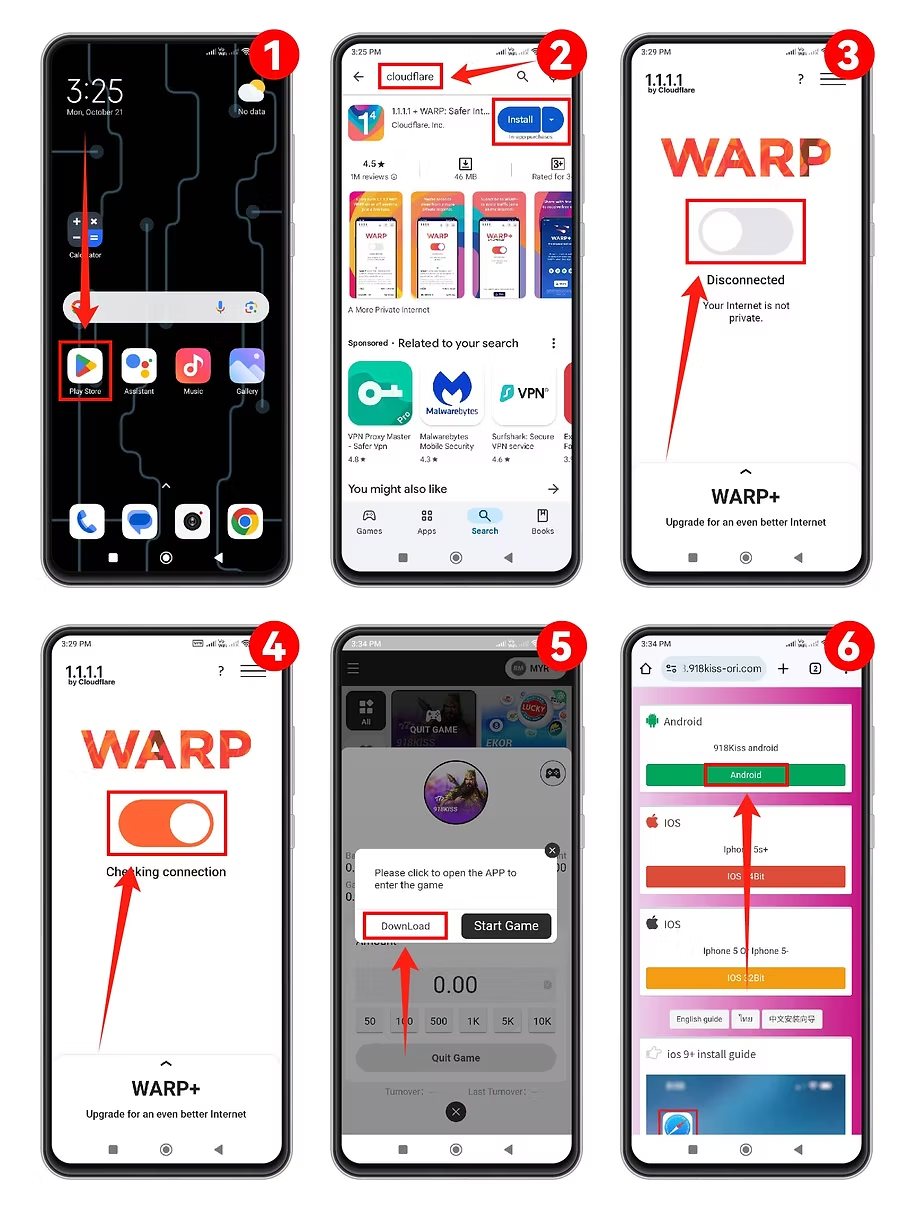
When the local network cannot access the platform, enable 1.1.1.1 and then try logging in again.

When abroad, use TunnelBear VPN to obtain a Singapore, Malaysia or Taiwan IP address, then retry access.
Access to each platform is determined by the user’s IP address. Follow all applicable local rules and regional restrictions.
FIND THE RIGHT ANSWER
The FAQ is organised around what a member is trying to complete. Each answer links naturally to a relevant illustrated tutorial or support route.
Recover a UID or password, authenticate the account, change contact details or reset a payment PIN.
Add or remove a bank account, top up through available flows and prepare a withdrawal request.
Send to a friend, scan to transfer, and locate transaction or game records.
Add, exchange or set currencies and follow the illustrated USDT deposit or withdrawal flow.